Thursday, May 24, 2018

New Features in Gmail to Save You Time and Keep You Organized


Are you overwhelmed with all of the emails that you receive?  Do you have a hard time finding emails on the day that you really need them?  Google recently released some new features for gmail that may help!

To turn on the new features: 
  • open Gmail
  • go to Settings 
  • select “Try the new School District of Elmbrook Mail.”


Note: If for some reason you don’t like the new features, Google will allow you to return to the "classic" view...at least for now.


Managing Individual Messages
When you hover over an email message, the following icons will pop up:

Like my alarm clock at home, my favorite feature is “Snooze.”  On a regular basis, I receive email messages about special schedules, meeting agendas, school events or something that does not need an immediate response or action.  This feature helps me not only clean up my inbox but it eliminates the searching I would do when I needed access to the email.   (Note: Conversation View must be turned on in Settings for this feature to be available.)


Although these features are not new, the new gmail provides quicker access to these buttons:

During really busy times it is easy to get behind on email so Google added the “Nudges” feature to send you reminders.  When you turn on the new version of gmail, this feature is turned on:

One last time saver to manage a message….when you are replying to an email you can add a button that will allow you to send a reply and archive the conversation with one click.


Quick Access to Other Apps

Calendar: The Day view will appear in the side panel.  Besides viewing your calendar, you can create a calendar event by clicking on a selected time or dragging through a time frame and then entering the specific details for the event. Frequently, I have to check my calendar before responding to an email or add an event to my calendar when I am working in email so this is nice time saver.

Keep: Access and create notes or lists.  Using this app that is accessible on the web or any mobile device has cut down on paper to do lists and post it notes on my desk.  For more information on using this awesome app, check out: blog post “Stay Organized with Google Keep”, Google Keep on Web, Keep (Android App), iPhone/iPad

Tasks: Create a simple to do list that is accessible in gmail. 


Now that spring has finally arrived in WI, hopefully these new features can help you "spring clean" your inbox and save you some time!

Submitted by Joanie Rueth, Teaching and Learning Coach/Technology Coach at Brookfield Central and Brookfield East

Wednesday, May 16, 2018

Taking Virtual Field Trips with Google Expeditions


Students come to school to learn about the world, but the world they long to experience is outside the school. While we may be able to create amazing learning experiences through field trips, these are often cumbersome to plan, expensive, and intrusive to student’s learning in other classes. On the other hand, the new technology offered through the use of virtual reality (VR) glasses, Google Expeditions, and a host of other apps allow an opportunity to explore beyond the walls without the burdens of a field trip. While a field trip will always be the more complete experience, these virtual opportunities offer the chance to learn beyond the walls of the classroom more frequently, on demand, and to places far further than can be tackled in your standard field trip.

The first thing you will need are some VR glasses. Fortunately, you can pick these up for a reasonable cost if you shop Amazon rather than going through educational vendors. You can get a set of glasses that will do everything you need for as little as $7.99. This picture is just one example of a set you can pick up. Many people purchase the Google cardboard glasses, but those are more expensive and far less durable than a plastic set like these.


At Brookfield East, the social studies department was able to obtain a class set to be shared between the entire history department, for just over $200. The supplier actually knocked down the price a little since we were buying in bulk.

But, now you have your glasses. What’s next? 

First and foremost, contact your friendly tech department. They will bring you a spare router that you will need to host all of your students on an expedition. Please don’t think you can skip this step. It’s quick, easy, and will get you in business so much faster. Once you have this, you just need to remind your students that they must specifically connect their phones to this alternative wi-fi in order for them to be able to join your expedition.


Next, you need to get the Google Expeditions app. This is free and easy to download from both Google Play and the App Store. Once you have this app, log-in and choose to be a guide.

From there, it’s time to explore and the tours seem endless. You can scroll through and check out what’s there, but there is also a search bar if you just want to cut to the chase.


Once you’ve chosen and downloaded an expedition, just click launch and wait for your students to follow. The great part is, once they’re in, you can see where they are looking . . . and they’re pretty funny to watch. In addition, the app provides you with a tour guide's script so you can give the kids all the information about what they are looking at. 


It may sound a bit confusing at the start, but once you get going, it’s really a breeze. Sure, some kids won’t have a phone, and some kid’s phone will decide not to connect that day, but they know how to share. It’s worth the experience even if everything doesn’t go exactly as planned every time.

To wrap things up, please realize that there are numerous other options that may be used with these VR headsets if you’re feeling adventurous. YouTube 360 offers numerous VR experiences that are actual videos with sound that students can access via headphones, and Google Earth offers the opportunity to visit just about any place on Earth. Once you get used to the set-up, there are a continuously growing number of VR opportunities to check-out or create your own with Google's Tour Creator.  

If you have questions, or need any assistance getting everything up and running, please feel free to shoot me an email at saylesl@elmbrookschools.org.  Best wishes for your adventures!

Submitted by Lindsay Sayles, Social Studies teacher at Brookfield East High School

Friday, May 11, 2018

Finding Credible Sources Is Easier with Library Databases


Are you worried that your students’ Google searching has sucked them into a filter bubble so they are no longer exposed to different perspectives and points-of-view? Help burst the bubble by encouraging them to search databases provided by BEHS and BCHS library media centers. Our databases include articles from credible global news sources, periodicals on a multitude of topics, peer-reviewed journals by top researchers, and electronic versions of reference books. 

Look for the Databases table on the LMC homepages and explore.

Here are a few of our favorite general purpose databases:


ProQuest Global Newsstream - archived articles from hundreds of credible news sources, including The New York Times, The Wall Street Journal, includes newspapers in world languages.  BEHS, BCHS

SIRS Knowledge Source - content from periodicals for a high school audience, keyword, advanced, and hierarchical searches. BEHS, BCHS
 

Academic Search Premier (EBSCOhost database provided by Badgerlink) - used by undergraduates in most 2-year and 4-year colleges, peer-reviewed research available. BEHS, BCHS


Flipster - browse magazines virtually via a chromebook or a personal device, includes recreational reading. BEHS, BCHS


Gale Virtual Reference Library (GVRL) - over 100 ebook reference sources available 24/7. BEHS, BCHS


In a time when our news is so commonly filtered, consider these resources to help broaden your students’ perspective on the issues around them. 


Submitted by Melissa Matz, Library Media Specialist at Brookfield East and Dan Paese, Teaching and Learning Coach/Library Media Specialist at Brookfield Central


Friday, May 4, 2018

Our Elementary Libraries Have Many Great Databases!


Last week, some of the great databases that are available to middle school students were shared with staff. There are many great tools also ready to use with our elementary students as well!

All students have access to the Library Catalog. This makes it easy to check on their accounts, look for a book, and put things on hold, all from their classroom! It is a great idea to check and see if a book is available before even making a visit to the school library!

Overdrive is a resource for both staff and students. Overdrive has a great collection of ebooks and audiobooks that students and staff can access 24/7. We continue to add to this collection!

Many already utilize Brainpop, BrainPOP Jr. and PebbleGo. These are great resources with video, audio, and read to me options of many different non fiction topics! Be sure to use these with all students when looking for online information about a variety of interests!


There are a few other resources that are often overlooked. On the MyElmbrook page of each student is a School Library folder. In this folder are some great online resources to check out!


Discovery Streaming
This resource has thousands of pieces of digital resources including videos, digital textbooks, and interactive media to help support curriculum as well as provide tools for out students. This site also provides great professional opportunities for teachers as well!


Encyclopedia Britannica
This is a safe and reliable resource for students to use while exploring and looking for information. The site includes three different reading levels covering a wide variety of topics and presents the material using articles, media, atlases and more!

Picturing America

This collection of photographs can be used by both teachers and students. This project tells the story of America through reproductions of pieces of art from 1100-1996.

WorldBook Online
This valuable encyclopedia has resources for our youngest learners through high school! With a few quick clicks,students and staff have easy to read and useful information at their fingertips.

It is easy for all Elmbrook users to get to these resources from the MyElmbrook page. By simply going through the portal, students have access to all these wonderful resources. If you need help getting started, check in with your library assistants!


Submitted by MaryBeth Bartels, Teaching and Learning Specialist at Swanson Elementary


Friday, April 27, 2018

The Best Online Resources... Are part of your Middle School Library!


We are resource rich in Elmbrook, and our library resources are no exception. Both Pilgrim Park Middle School and Wisconsin Hills Middle School library pages have gone through an update and redesign to make them more user friendly. There are four main resources you can access on our home page. These resources are: Research databases, our digital magazine platform named Flipster, OverDrive Ebook Platform, and the Library Catalog.

Our library research databases have been reformatted. You will now see tiles, rather than text links. Our databases can be used for a variety of research purposes. We have World Book and Encyclopedia Britannica as our general references. We have specialized references like Opposing Viewpoints, Middle Search Plus, Ebsco, Explora and Culture Grams. We also have access to NoodleTools which is the most comprehensive way for students to complete citations for research. Please contact your librarian assistant or Teaching and Learning Specialist if you want further information on any of those materials.


We added online magazines to our website. The online magazine platform is called Flipster (which is the same platform that Brookfield Public library uses). We have an unlimited use model which allows multiple students to use a specific magazine at a time. Each middle school has different magazines. These magazines were chosen based on student and teacher input. 


The library is open 24/7 because OverDrive is our district Ebook and audiobook platform. You have access to over 4100 eBooks and audiobooks. Students and teachers can browse through collections, subjects, and books based on text difficulty. There is also an AMAZING staff library that carries many professional, and may I say, high interest books for teachers. We are also very responsive to needs. We are able to purchase and attain books within a two hour window if the need arises! 

The library catalog has been a staple of the library home page. Both schools maintain an up-to-date collection of print books in both fiction and non-fiction. Students can use this page to search for books before they even need to go to the library. Encourage your kids to bring their Chromebooks to the library so they have a mobile searching system while browsing for books.

These are the highlights of what your libraries can provide you. Make sure you contact your Technology TLS or Librarian Assistant if you have any questions, needs, or wants. We are here to help you.

Pilgrim Park
TLS - Dan Gebauer (gebauerd@elmbrookschools.org)
Library Assistant - Jenny Beehler (beehlerj@elmbrookschools.org)

Wisconsin Hills
TLS - Shane Radosevich (radosevs@elmbrookschools.org)
Library Assistant - Judy Scaro (scaroj@elmbrookschools.org)


Submitted by, Dan Gebauer, TLS at Pilgrim Park Middle School

Friday, April 20, 2018

Student Tech Teams Making A Positive Impact In The District


High school students are making a difference as members of newly-formed student tech teams, Spartan Tech and TechCentral.  Tech team members are serving fellow students district-wide by repairing chromebooks in-house and assisting students with technology.  They have learned how to repair screens, keyboards and batteries in-house, greatly reducing turnaround time.  Tech team members are supporting faculty and staff with technology, as well as shadowing district technology professionals.

During the recent ACT Aspire testing, every freshman and sophomore needed a functioning Chromebook for two days of testing.  Tech team students were instrumental in the success of testing by preparing loaner chromebooks and completing same-day repairs.


In addition to their hands-on work, tech team members are engaged in projects based on their talents and interests.  Students are helping build and expand a digital tool resource website for staff, working on coding projects, taking A+ certification courses, and building new phone apps for school resources.  Tech team members are earning credit through a technology mentorship program, which will include opportunities to shadow tech professionals in the community and mentor middle school students.  The tech teams are a great addition to the Elmbrook District this year and we are very proud of our students who are engaging in service leadership with technology.

Submitted  by Sue Weiger, Library Instructional Technology Assistant at Brookfield Central, and Doris Osterhaus, Library Instructional Technology Assistant at Brookfield East

Photos by Nirbhay Vig, junior at Brookfield Central

Wednesday, March 28, 2018

Feedback is More than an Add-on


In modern PD, we spend a lot of time discussing the why of adopting new practices. But, in this post, I'd like to focus on the how.  Specifically, how to create more opportunities to connect and provide effective feedback. I’d like to focus this post on the #1 tool I use in class for feedback, Pear Deck.
Pear Deck is a great tool for students to interact with a presentation. It allows for collecting student thinking to drive instruction and creating opportunities for student reflection during instruction. Students can interact via any web enabled device from a laptop to a smartphone. It is a gigantic leap over clickers and tools like poll anywhere because of the interactions it allows learners to have and the forms of feedback that can be collected.
With the recent addition of the Pear Deck add-on for Google Slides, I think it’s a great time to share more information about, how it can be used. Pear Deck is a Freemium piece of software. While teachers can pay for a subscription and get a large number of additional features, I’d like to focus only on the free features that are available with the Pear Deck add-on.

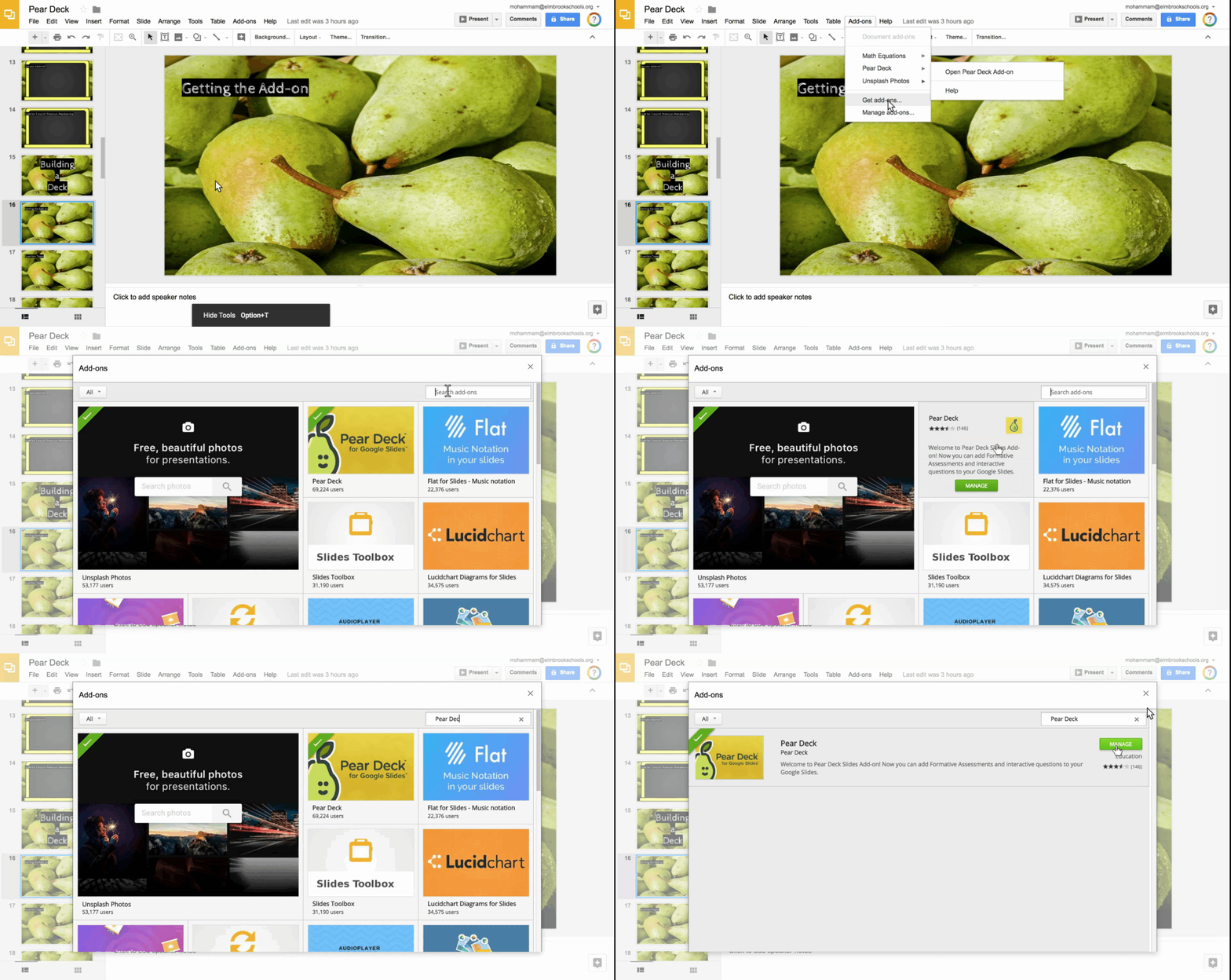
Getting add-on

The first thing to do is open Google Slides and go to Add-ons in the top toolbar.


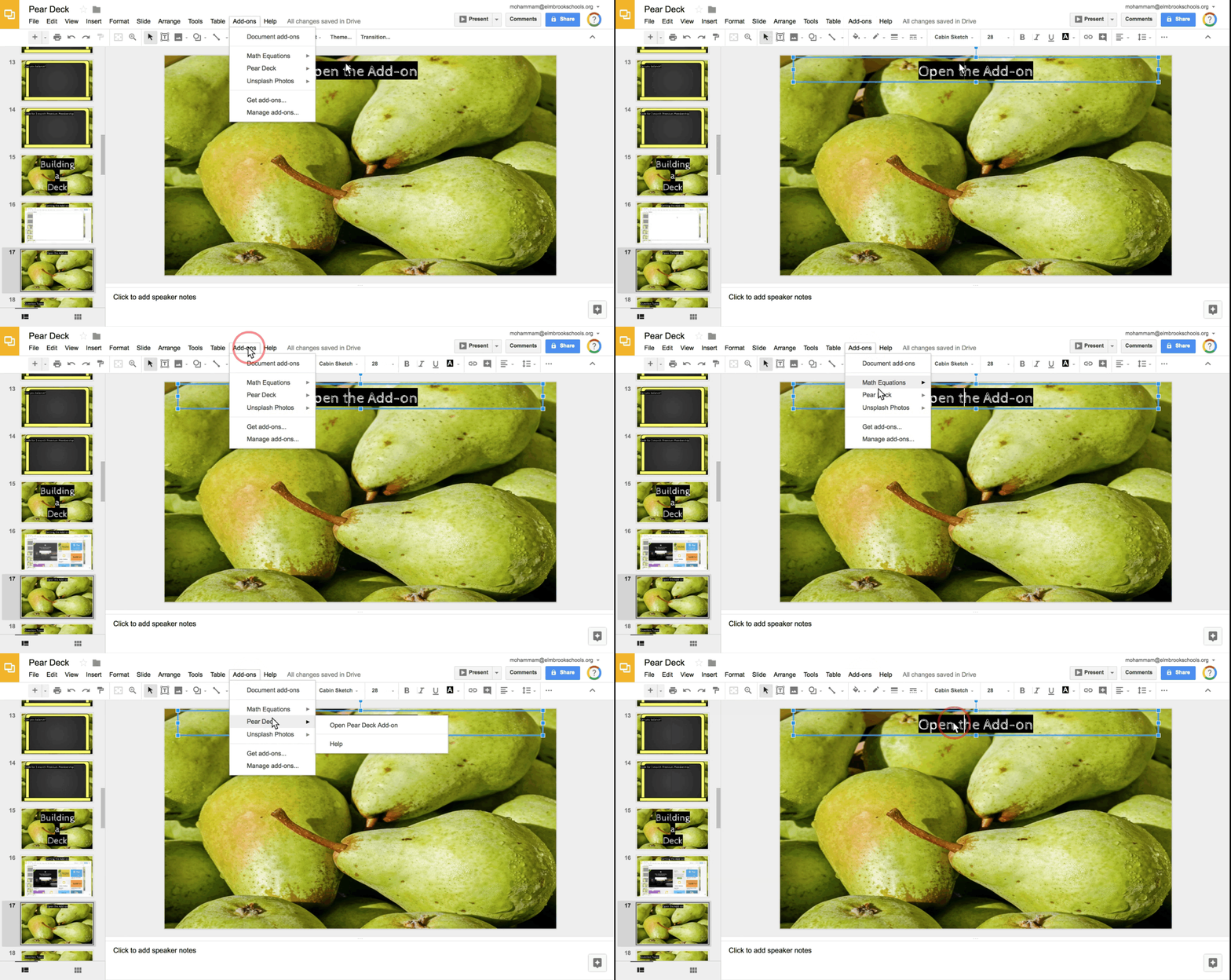
Opening the Sidebar

Once you’ve added the add-on, you can access it’s features by opening the add-on.
The sidebar is where all the functionality is for the add-on. From the sidebar you can
  1. Add student response slide templates from the gallery
  2. Turn the current slide into an interactive slide 
  3. Present a Pear Deck to your class


Slide Templates

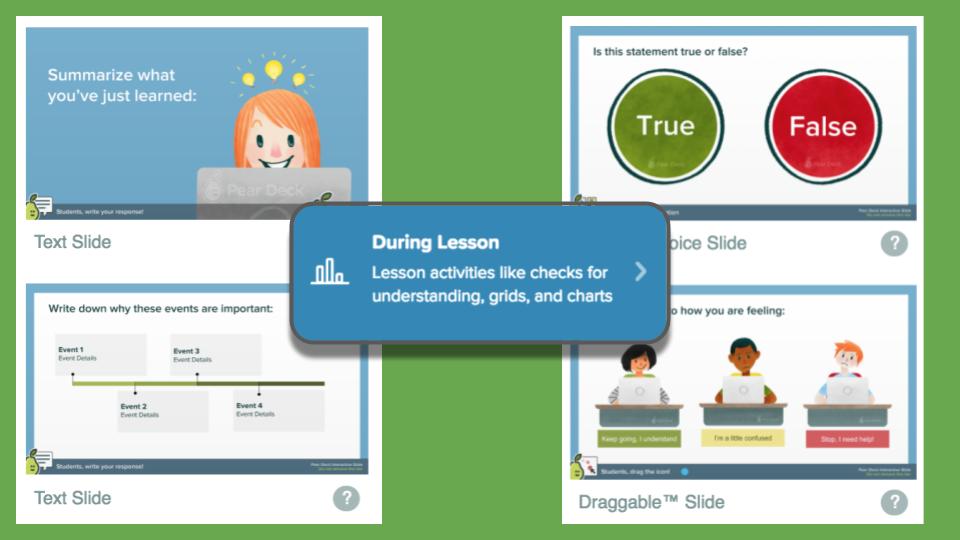
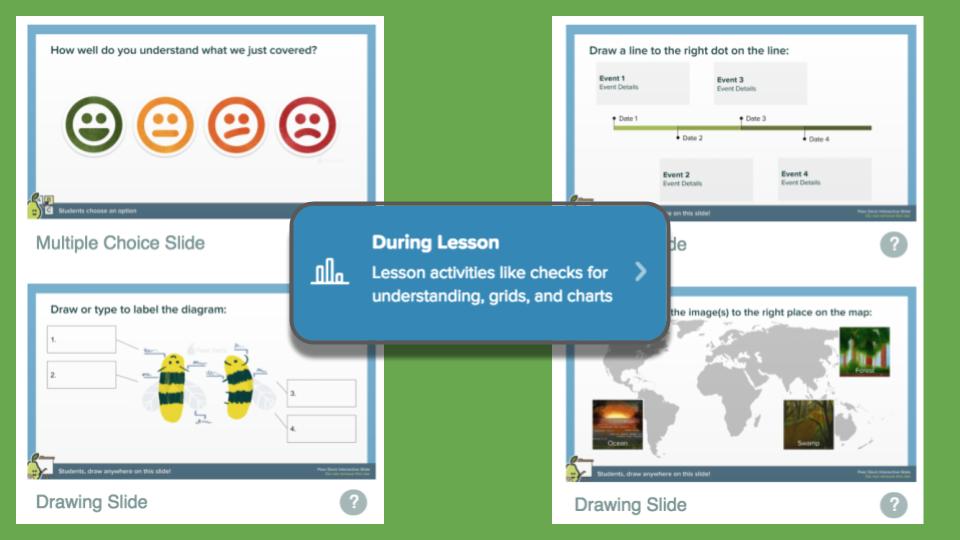
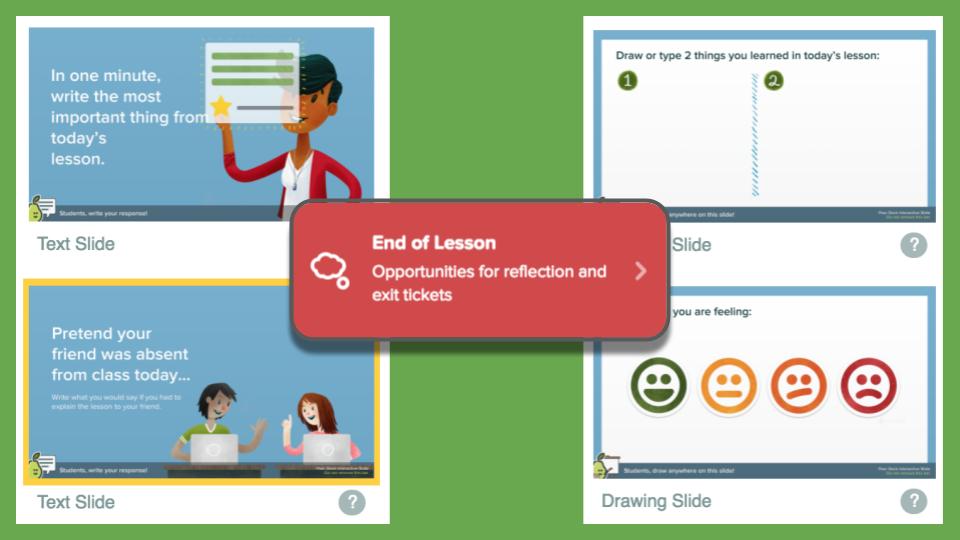
The add on provides a gallery of different pre-made interaction slides that are completely editable.  

They are divided into 3 different categories

  • Beginning of Lesson - Think of these as a way to tap into prior knowledge or build curiosity related to a topic before you begin digging deeper.


  • During Lesson - These are great ways to check for understanding or provide opportunities for discussion where every student’s ideas can be heard during instruction.


  • End of Lesson - Think of these as opportunities for students to reflect and summarize learning from the lesson and a way for teachers to get some feedback about the lesson.

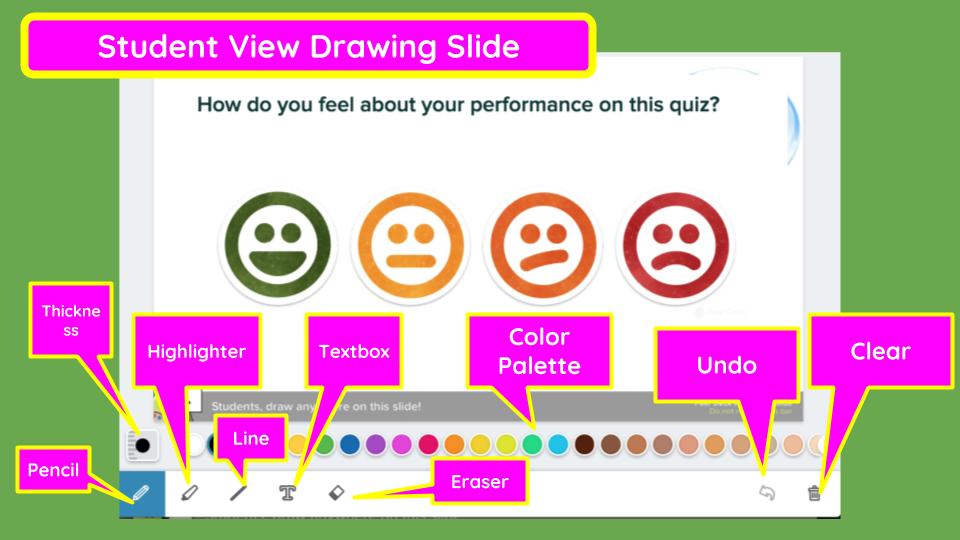
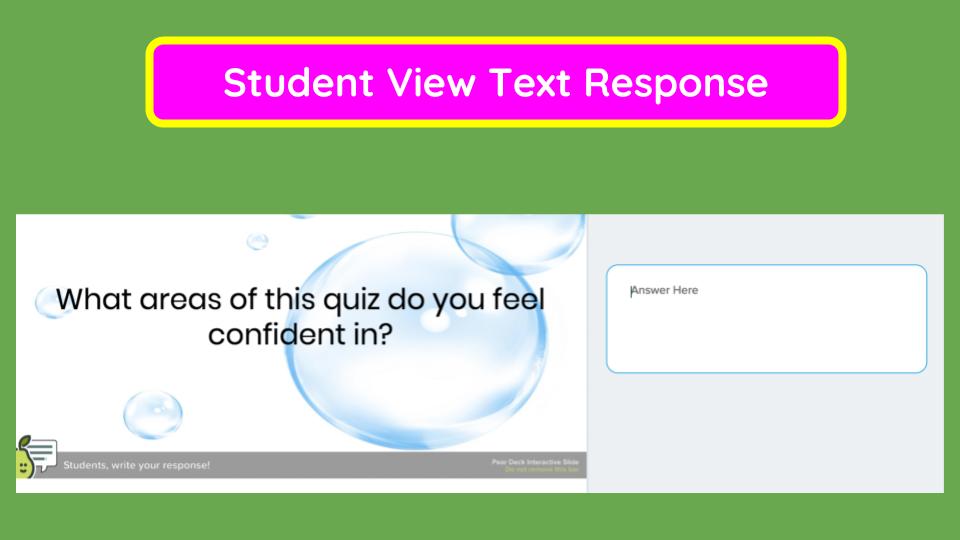
The templates provide for a wide variety of learner response modes beyond multiple choice.  They include drawings, dragging a dot, text and numerical response.
So if you open a presentation you already have, you can just add these slides wherever you’d like to get students to interact with the presentation and their peers.


Adding Response to a Current Slide

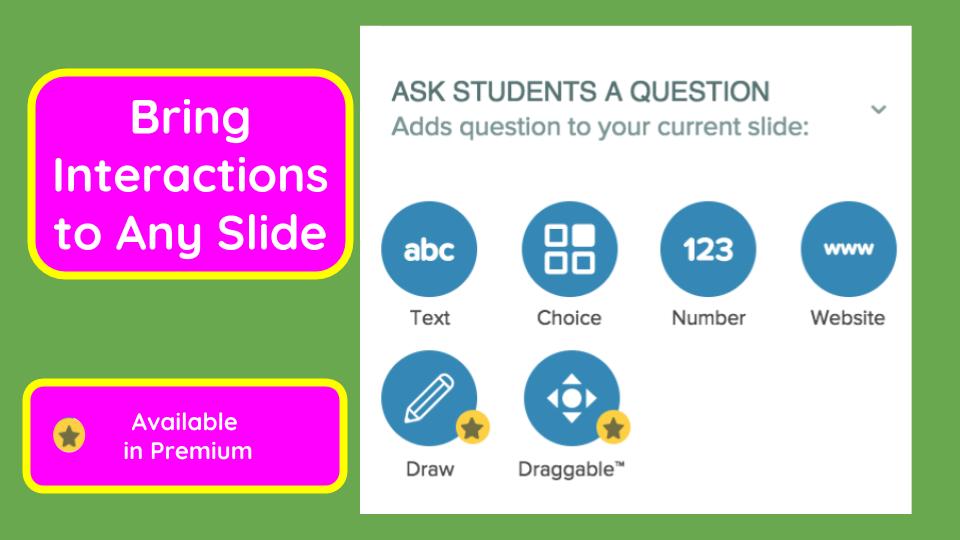
You don’t need to use the templates from Pear Deck to create interactions.  You can create or use your own slides then add an interaction via the sidebar.  You can make any slide a text response, numerical response, or a multiple choice. With the slide open, just click the option you would like from the sidebar and follow the pop-up instructions.
You can also add a web link that will direct student devices to that link while you project what is on your current slide. Perhaps, instructions may be displayed on the slide while students would be taken to an article to read or simulation to experiment with on the web.
The two question types not available to add-on to a slide you created are draw and Draggable (these are premium features). But remember, there is a gallery of these that can be used and altered with no requirement for a premium account.


Start Presenting

When you’ve got your presentation all ready, you can again use the sidebar to launch your presentation.
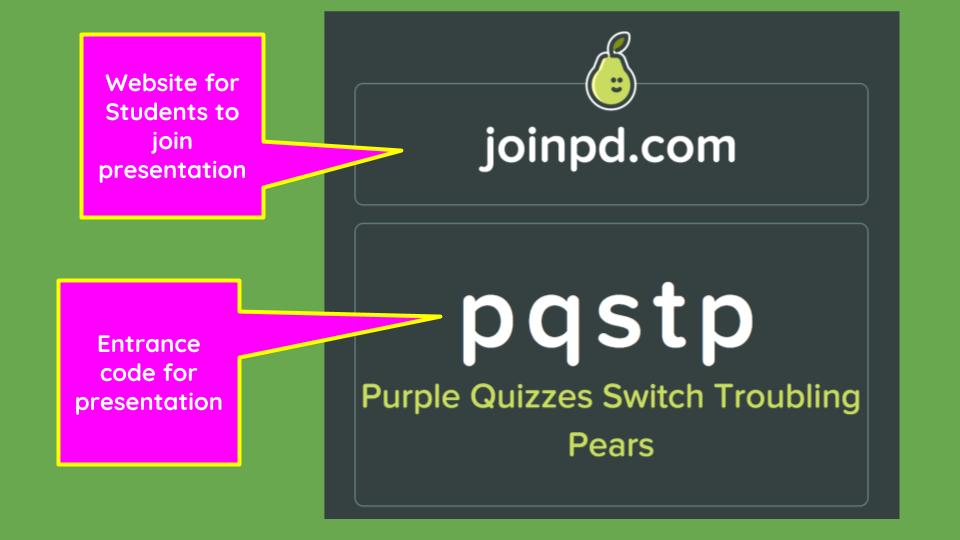
A code will appear on the projector that will direct students to join the presentation session.


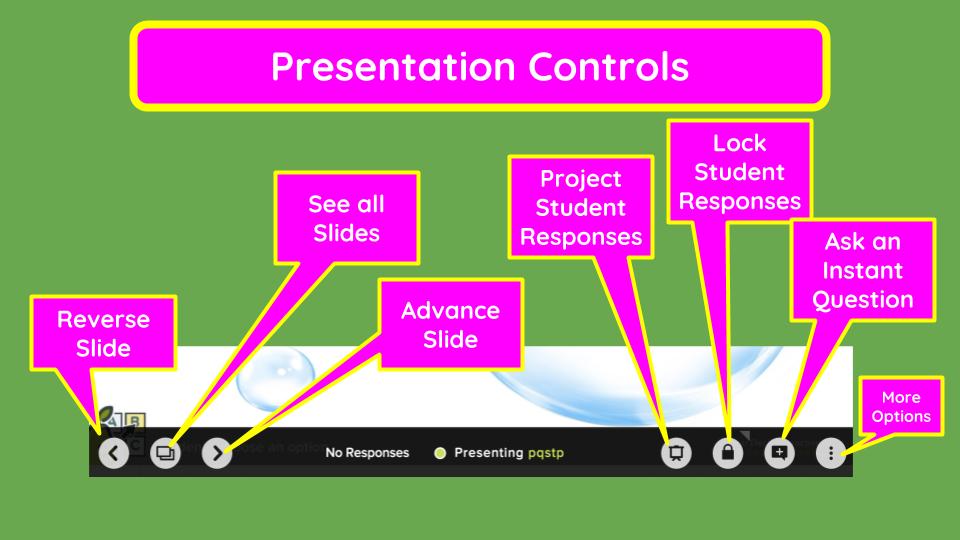
Presentation Controls

Once students have logged in, use the control bar at the bottom of the screen to navigate through your presentation.
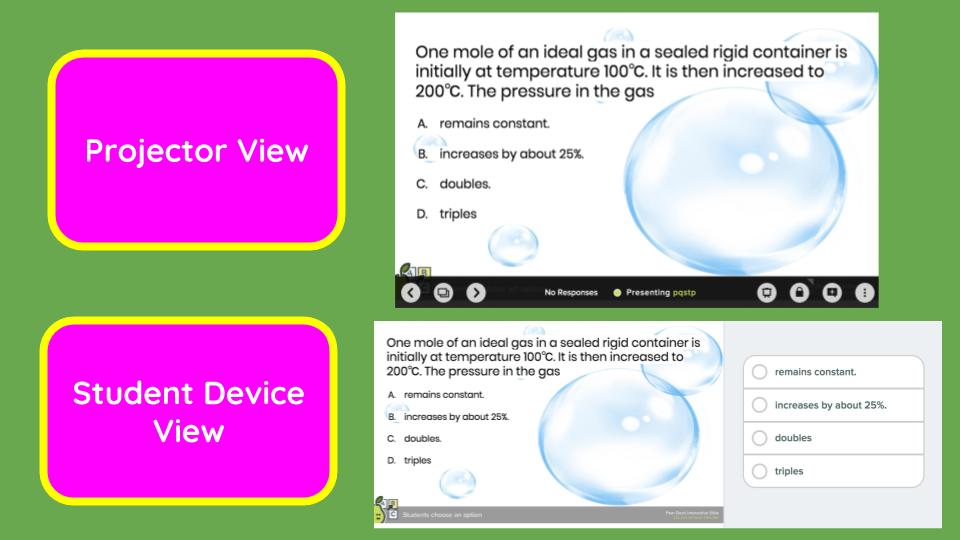
As you progress through slides, students will see the projected version on their device. When you reach a response slide, students will have space to respond aligned to the type of interaction.


Looking at Data in Real Time

So students are responding to a question, what next? By hitting the lock button, you can lock students from responding. The project button, shows student responses on the projector. No student names are ever projected.  Responses can be toggled to see an overlay of the class as a whole or each response individually. This is a great way to see where you are as a class in order to guide next steps for instruction in real time.
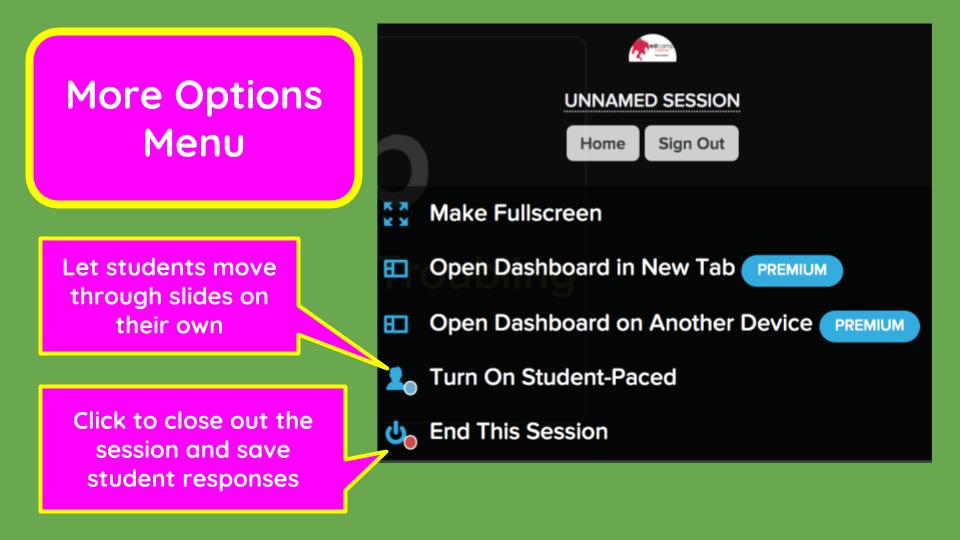
In addition, you can add questions on the fly with an instant question option. And the more option menu (the three dots in the bottom right hand corner) gives you the ability to let students work through a presentation at their own pace.  I use this option for all of my practice quizzes. I give students a set amount of time to work through the slides and then we discuss/correct them together.


Looking at Data After the Fact

When your done with a presentation, hit the end session button under the more options menu.
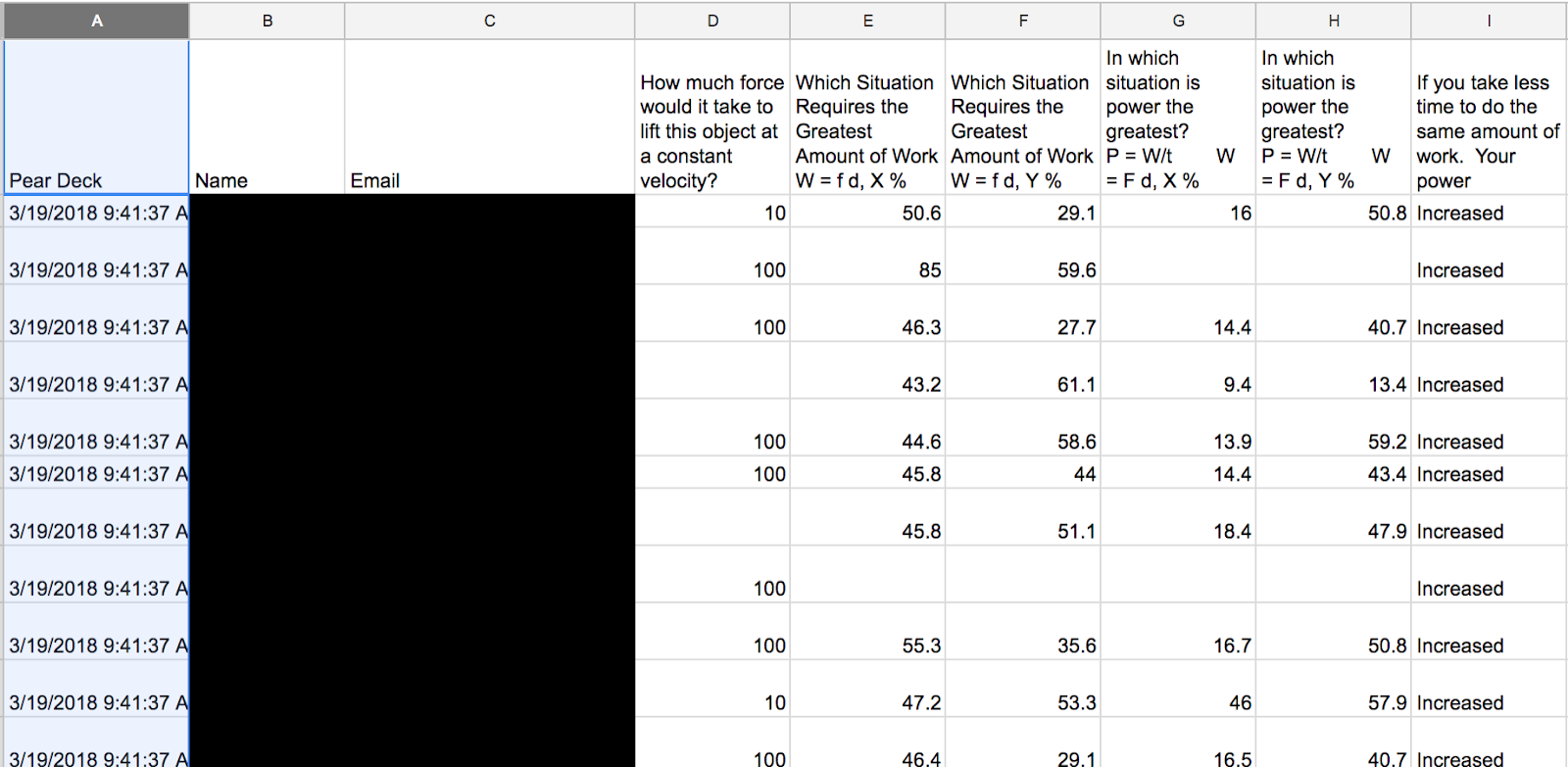
To revisit the session and get more information, head to PearDeck.com and login. Here, you will find your most recently used decks.  From this home page, you can reopen the session or export resposes to a spreadsheet.


Once you’ve closed a session, you can see how individual students responded to each question by exporting a Google Sheet. This will give you a chance to look more closely and quickly at who was struggling (or not engaged) and look at some of text responses in more depth. (I’ve blacked out names and emails.)


Feedback for Students and for Educators

Pear Deck is a great tool, but it is still a tool that must be put to work. The interactions you structure will help make it a useful tool. Understanding why your are using it and what you are asking learners for is the key to making it powerful. The interactions are a powerful tool to
  • Check understanding during instruction
  • Have students confer with peers
  • Have students summarize learning 
  • Have students make hypothesis or state opinions before instruction
  • Give students a chance to provide feedback on instruction
But in all cases, questions will be more useful when the teacher understands why the question is being asked and knowing what can be done with the results.
I’m a huge advocate for Pear Deck because of the positive feedback I get from my students about it.  I use a bunch of different tech tools and strategies, but the use of Pear Deck is always the one thing students say helps them learn the best in my classroom.
If you have any Pear Deck questions, please reach out to me!!! (I'm a certified Pear Deck coach.)


Please note, I’ve only focused on the free version of Pear Deck. With a premium subscription, which includes the Teacher Dashboard, you can extend the efficiency and precision of the feedback you can provide. Here’s is little more info of how I use it.

Submitted by Mike Mohammad, Physics Teacher at Brookfield Central High School


Tuesday, March 27, 2018

Using Chrome Bookmarks to Organize Your Drive ...... And Everything Else

Many of us are at that overwhelmed stage where we have access to everything in Google Drive...but we have to search for it, remember the name of the document, or even search for links in our Gmail before we can locate it.  We lose precious seconds and minutes because things we access often are several clicks away.

A potential strategy for organizing all your frequently used documents, forms, sheets, websites, and more is your bookmarks bar. 

To learn how in under six minutes, watch this video:

Submitted by Heather Lemke, School Counselor at Brookfield Central High School

Friday, March 23, 2018

Looking for a Good Read?

Spring break is right around the corner and it's time to be thinking about finding something to read.  Whether looking for an ebook or emagazine to read on your portable device, an audiobook to listen to as you catch some rays, or a totally retro hard copy book, your Elmbrook libraries can help you out.

Overdrive eBooks & Audiobooks
Elmbrook's Overdrive collection has been growing steadily over the years and now has over 6000 fiction and nonfiction ebooks and 1500+ audiobooks.  While you can stream and read directly on any internet-connected device, most download the app to a portable device (e.g. iPad, smartphone, Kindle), select a title, and read or listen wherever they are.

Flipster eMagazines (high school and middle school libraries only)
Similar to Overdrive, Flipster allows you to read magazines online or you can download the app to your portable device, connect to your school library, and read entire magazines cover to cover.

School Library Online Catalog
And of course, if you don't want to worry about recharging or screen glare, check out one of the thousands of hard copy books in our school libraries by browsing the online catalog and stopping by your library to check out a book.

You can access all of these resources from your school library home pages.  Happy reading!

Submitted by Dan Paese, Library Media Specialist and Teaching and Learning Coach at Brookfield Central High School.

Friday, March 16, 2018

Collect Formative Data With Quizzizz To Drive Instruction

Many teachers I know incorporate Kahoot into their teaching as a way to review and measure student progress.  Although I see the value of Kahoot, I wanted to find another web 2.0 tool that I could use with my students that keep things fresh and give me another tool to collect data to help drive instruction.  I found a tool called Quizizz.  Quizizz is very similar to Kahoot.  However, it has some other benefits/features:

  1. It is more personalized- students read questions individually and can move on at their own pace. 
  2. The focus is more on the answers instead of speed.
  3. It saves time- there are many premade Quizziz on many topics shared by teachers and it is user friendly if you want to make your own or if you want students to generate one.  It is easy to share with other teachers in your building or cross buildings. You can pull questions from other Quizizz as well.
  4. It can be used in the classroom or assigned to do at home on a phone or Chromebook.  No need for an account, just the code.
  5. It is easy to share with Google Classroom, Remind, Edmodo, or by giving the session code.
  6. Students get instant feedback on their progress. 
  7. Data is generated through an instant report which lets you look at where students are finding success and challenges both individually or as a class.
  8. It has many uses for formative assessment such as warm-ups, exit tickets, and review. It could be used to introduce a topic or as assessment.

How do you get started?

Visit quizizz.com/signup from any device.


Submitted by:  Corrine Beresford, 8th grade Science and Social Studies at PPMS

Friday, March 9, 2018

Resources and Instructional Strategies in Discovery Education

Over the last year, I have facilitated multiple Discovery Education professional development sessions.  Every staff member, in every content area, was able to find helpful resources.

With so many great resources available in our district, here are a few reasons why you should check out the collection of resources in Discovery Education:

  • Videos: safe and school appropriate...no need to worry about ads or inappropriate content; can search by topic or standard with filters for grade levels. 
  • Instructional Strategies: contains over 100 strategies that can be used to enrich your lessons in any content area.  Each one has a short pdf and video to describe the strategy, how to use it along with extension ideas.
  • Media:  includes a collection of images and audio files; also includes the citation to make it easy to add images to presentations and provide source information. 

Login to Discovery Education
Our Discovery Education accounts are connected to our google accounts.  When you get to the login screen for Discovery Education, click on the "Sign in with Google" button and, if necessary, enter your school email address and password. Then, start searching!

To access the Instructional Strategies in Discovery Education: 

  • Click on Professional Learning in the Discovery Education Menu
  • Click on Strategies and Resources or scroll down to the bottom to see more details
  • Click on Spotlight on Strategies to see the following list ("View all" links will show even more strategies for each category):

Categories of the strategies

For more assistance with using this fabulous resource, contact the Technology Coach/Teaching and Learning Specialist at your school.

Submitted by Joanie Rueth, Technology Coach/Teaching and Learning Specialist at Brookfield Central and Brookfield East.

Friday, March 2, 2018

Providing Descriptive Feedback with Digital Tools

"We can learn without grades, we can't learn without descriptive feedback."
-Rick Wormeli

Giving effective, descriptive feedback can be time consuming for teachers but is well worth the effort. For more information about the "why,"  check out the following article: Why Giving Effective Feedback is Trickier Than It Seems

I have always believed that digital tools are worthwhile if they can make you more effective and/or efficient.  Check out some ways that teachers use tools to provide feedback:

GSuite Apps (e.g. Google Docs, Slides)
  • Google Docs Comments: Allows commenting and replies along with assigning tasks.  To make the process faster, some teachers prefer using keyboard shortcuts.
  • Google Read and Write:  While our district purchased the premium version for staff and students (premium is free for all educators), a couple of the tools on this toolbar can be quite helpful when providing feedback:
  • CheckMarkClass: Chrome extension that allows you to create a toolbar to quickly add comments to a google file.  Teachers have the ability to customize the list with comments they would most frequently use. 
Canvas

  • Speedgrader: When students submit assignments (could be a link to a google file, text entry, file etc..), this tool allows the teacher to quickly flip through the student submissions and provide feedback in multiple ways.
  • Rubrics in Speedgrader:  Attach a rubric to an assignment to provide feedback to students.  Tip: common rubrics can be added in Canvas at the department or school level to save time creating a rubric by each individual teacher.
For more ideas on how to use digital tools to provide feedback, reach out to the digital leaders or tech coaches in your building.

Submitted by Joanie Rueth, Teaching and Learning Coach/Technology Coach at Brookfield Central and Brookfield East.


Friday, February 16, 2018

Using the Scheduler in Canvas to Setup Student Conferences or the Order of Presentations

When Megan Fisher and I presented at the SLATE Conference, two staff members from Sheboygan Falls School District inquired about a site visit to learn more about how Elmbrook is using Canvas. On Thursday, I had the opportunity to host several staff members from the Sheboygan Falls School District at Brookfield Central and Wisconsin Hills. (Thank you to Jamie Silver, Ellen Linnihan, Mike Mohammad, Elke Sommers, Suzanne Riesen, Shannon Maki, Megan Fisher, Erin Fike, Kathleen Evans, Amie Farley, Ann Archibald and Shane Radosevich for sharing your experiences with Canvas.)
During this site visit, I participated in several discussions around our use of Canvas and witnessed the great things that our teachers are doing. Canvas provides many tools to be more efficient but one overlooked tool in Canvas is the Scheduler. This tool allows you to create "appointment slots" where students can select a specific time for various purposes.
Jamie Silver, an English teacher at Brookfield Central, uses the Scheduler in Canvas to schedule student conferences for redo's and to provide time slots for students to select their presentation order:
Canvas Scheduler
To learn more about how to create an appointment group and to have your students sign up for a time slot, check out the following guides in the Canvas Community:
Not only does this tool give students the opportunity to select times that work well in their schedule but it helps the teacher keep track of appointments or the order of presentations.
For more assistance with this tool, reach out to the Technology Coach or one of the Digital Leaders in your building.
Submitted by Joanie Rueth, Technology Coach/Teaching and Learning Coach at Brookfield Central and Brookfield East.

Friday, February 2, 2018

Learning "Selfies" as Formative Assessment

Last December, I attended a session called App Smashing, using multiple apps to create a digital product, at SLATE (School Leaders Advancing Technology in Education). The super dynamic presenter introduced the group to the idea of using app smashing to have kids create various “Selfies” about their own learning.  For example, here is a "Math Selfie:"

Since the conference, I have used Learning Selfies every Reading and Writing unit. I ask students to create a Pic Collage including a selfie, the date, their reading/writing partner’s name or photo, their personal writing goal, and a photo of their own writing showing work towards their goal. Then, I have kids save the Pic Collage as a photo and share it on ClassDoJo Stories with a caption- this is then shared with me and families in their digital portfolio. It is also a great way for new partners to include themselves as readers or writers.

Here are some more examples:


I have my students primarily use the following apps: Pic Collage and Book Creator as a template, the camera app and screen capture to take a snapshot from any app, and then Class DoJo to share. 

This activity is highly engaging and a powerful tool in helping students take ownership of their learning. 
Submitted by Nicki Dahms, 2nd Grade teacher at Tonawanda Elementary

New Features in Gmail to Save You Time and Keep You Organized
Are you overwhelmed with all of the emails that you receive?   Do you have a hard time finding emails on the day that you really n...